Showing posts with label Technorati. Show all posts

Monday, September 17, 2007

Quest 6 - Tag, You're It!

Tagging is an open and informal method of categorizing that allows users to associate keywords with online content (web pages, pictures & posts). Unlike library subject cataloging, which follows a strict set of guidelines (i.e.Library of Congress subject headings), tagging is completely unstructured and free-form, allowing users to create connections between data any way they want. In upcoming Quests, we will explore a few sites – Flicker and LibraryThing to name two - that allow users to take advantage of tagging. (You're already using one site that allows tagging: Blogger! It calls them "labels" and you can see the labels we've chosen for each week at the bottom of every Quest posted here on Tech Trek 2.0.)

This week we'll exploring two very popular sites that use tagging: the social bookmarking site Del.icio.us, and a popular blog search engine Technorati.


Del.icio.us

Del.icio.us (typed in as http://del.icio.us/) is a social bookmarking manager which allows you to bookmark a web page, add tags to categorize your bookmarks, and share your bookmarks with the world! One great reason to use Del.icio.us for your bookmarks is that you can see your bookmarks on any computer with Net access. (Many library service desks have a certain set of web sites they visit all the time. Wouldn't it be helpful to be able to see those bookmarks no matter which computer you're using right now? Yes, we thought so, too!)

Additionally, many Del.icio.us users love being able to use tags to see how other users have tagged similar links and also discover other websites that may be of interest to you. Think of it as peering into another users’ filing cabinet and also having access to a filing cabinet that millions of people have helped create. We'll take a closer look inside Del.icio.us during the Discovery Resources & Discovery Exercise below.


Technorati

Since we've been using the Tech Trek 2.0 blog and our individual blogs since Quest 2, you might be wondering just how big the blogosphere (aka: the blogging world) is. Well, according to Technorati, a leading search engine / authority on blogs, the number of blogs doubles just about every 6 months, with over 106.2 million blogs currently being tracked by the site. As for tags, over 250 million bits of media are currently tagged on the site! Yes, these numbers are astounding, but as you’ve already seen for yourselves, blogging is easy and inexpensive enough that almost every industry, including libraries, is entering the blogosphere.

So how does a person get their blog listed on Technorati, and how can you tag your posts with keywords to make them more findable in a Technorati search? The answer to the first question is that your blog is probably already being captured by Technorati if you're using very popular blogging tools such as Blogger, LiveJournal, WordPress. However, if you want to join the party and have your blog officially listed on Technorati and also take advantage of the site's other features, you’ll need to claim your blog yourself. As for tagging posts with Technorati tags? That's pretty easy, too. All you need to do is add a little bit of HTML code to the bottom of your post (see the example at the end of this post) and Technorati will pick up these tags when it checks (or web crawls) your site. Of course, as a popular blog & media search tool, you can use Technorati to locate blogs, videos, video blogs, and music. You can search for keywords within blog posts, search for a particular blog post, videos, or music files that have been tagged with a certain keyword, or search for blogs that have been registered and tagged as a blog about a certain subject (like photography or libraries). The best way to understand what Technorati can do is to try searching it, which we will do as part of the Discovery Exercise.


Discovery Resources

Otter Group Del.icio.us tutorial (12 min video) - Talks (among other things) about how to use Del.icio.us tags to find new websites on any topic. [Edit: Another video to try in case this one doesn't work is Getting Started With Del.icio.us.]

Us.ef.ul: A beginners guide to Del.icio.us

Several Habits of wildly successful Del.icio.us users

Technorati Review Part 1 and Part 2 - from the Recommended Web Tools Blog

Technorati Redesigned - Get Realigned Here - a good overview of the current version of Technorati's interface, which changed this past May. (Many Technorati tutorials out there still cover the previous version.)

Technorati Popular features


Discovery Exercise
One half of this week's exercise is about Del.icio.us. The other half is on Technorati.

Part One: Del.icio.us
  1. View the 12 minute Del.icio.us tutorial to get a good overview of its features.
  2. Check out Del.icio.us by looking at the TechTrek20 account that was created for this exercise. Note: In this account you will find lots of resources that have been highlighted or used throughout the course of the TechTrek 2.0 program.
  3. Try clicking on a bookmark that has also been bookmarked by a lot of other users. Can you see the comments they added about this bookmark or the tags that they used to categorize this reference?
  4. Create a blog post about your experience and thoughts about this tool.


OPTIONAL: If you’re up to the challenge, create a Del.icio.us account for yourself and discover how this useful bookmarking tool can replace your traditional browser bookmark list.


Part Two: Technorati


  1. Take a look at Technorati's Advanced Search and try doing a search for “Library 2.0” in Keyword Search, in Tag Search and in the Blog Directory. Are the results different?
  2. Explore popular blogs and blog searches. Is anything interesting or surprising in your results?
  3. Create a blog post about your discoveries on this site.

OPTIONAL: If you're up for a challenge, learn how to tag your posts by with Technorati tags so users can find your posts on Technorati. Create a post about something. It can be anything you want. Then add the HTML code to the bottom to tag it as “TechTrek2.0.” You may also want to consider claiming your blog and creating a watchlist. (NOTE: When adding HTML code, you'll want to make sure you're in Blogger's Edit HTML tab.)

Technorati Tag:

Sunday, August 12, 2007

Quest 4 - RSS and Newsreaders

You’ve heard of RSS? You’ve seen those small funny tags on websites? You’ve heard co-workers and acquaintances swear by it, but still have no idea what RSS is? Well don’t worry, according to a recent survey you’re still in the majority, but this is changing rapidly. In the information world, RSS is not only revolutionizing the way news, media and content creators share information, but it also is swiftly changing the way everyday users are consuming information.

RSS stands for “Really Simple Syndication” and is a file format for delivering regularly updated information over the web.

Just think about the websites and news information sources you visit every day. It takes time to visit those sites and scour the ad-filled and image-heavy pages for just the text you want to read, doesn’t it? Now imagine if you could visit all those information sources and web pages in just one place and all at the same time … without being bombarded with advertising … without having to search for new information on the page you’d already seen or read before … and without having to consume a lot of time visiting each site individually. Would that be valuable to you? Well, it’s available now through a newsreader and RSS.

This week’s discovery exercises focus on learning about RSS news feeds and setting up a Bloglines account (a free online newsreader) for yourself to bring your feeds together.


Discovery Resources:

  • CNET Video: RSS – Feel the Need for Feeds (3:32) – a good over view of what RSS is and the benefits to users.

  • Feed Me: A gentle introduction to Internet feeds - a good tutorial from Palinet, a library cooperative

  • Using Bloglines Tutorial (how to keep up with dozens of blogs everyday) – This online tutorial walks you through how to setup a Bloglines account and add newsfeeds. Follow Steps 1 to 3 to set up your Bloglines account. Steps 4 – 9 are optional and cover how to subscribe to different types of feeds (podcasts, Flickr albums, etc)

  • Adding RSS Feeds to Bloglines - A short YouTube video that I created showing how to add feeds.

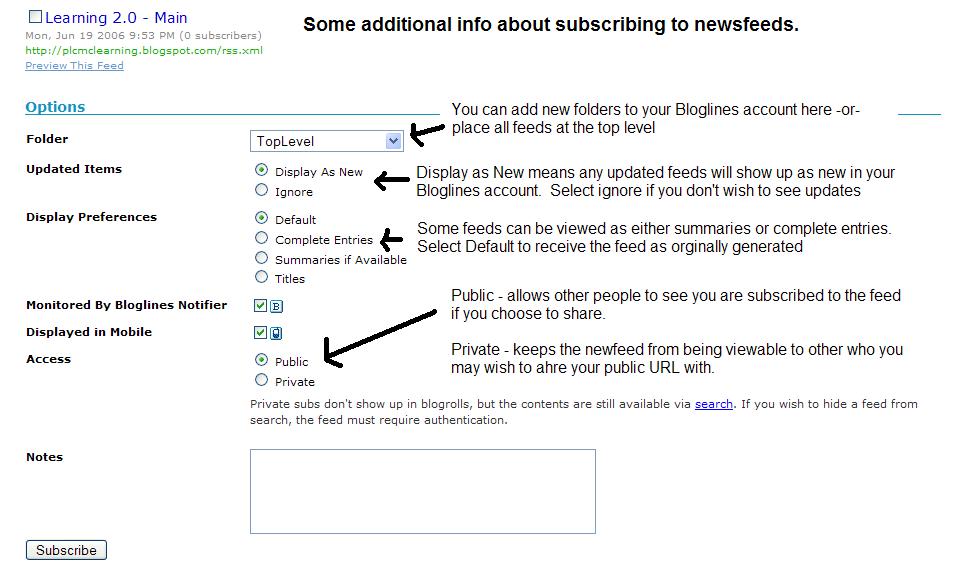
  • Additional Bloglines news feed subscription information (screenshot image)

  • Your co-workers - tap into their knowledge or work through your discovery process together. Several CCPL staff have already attended the State Library's training on Blogs which talked a bit about RSS, and several staff manage library-related blogs - seek them out and ask them to show what they know.


  • Discovery Exercise:


    1. Follow some of the discovery resources above to learn more about RSS and newsreaders.

    2. Create a free online Bloglines account for yourself and subscribe to at least 10 newsfeeds in your reader. See Using Bloglines Tutorial steps 1-3 for instructions.


    3. Newsfeed Examples:
      • Tech Trek 2.0 participant blog feeds - Try subscribing to several of your co-workers' feeds. This is as easy as typing the blog URL into the subscribe field in Bloglines. Try it, it's easy!
      • Then try adding a few other types of news feeds from news sources and library-related sites. (Here are some examples of feeds that you can choose to subscribe to if you want.)


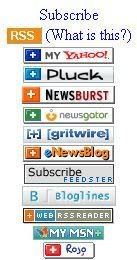
      • Once you start to look, you can find feeds almost anywhere! When visiting your favorite websites, look for news feed icons like these which indicate that the website provides a feed. Often feed icons are displayed somewhere in the navigation bar of the site. (For example, do you see that orange chicklet - shaped button in the sidebar of this page? That's one!)

      • Specialized search tools also exist to help you find feeds. Bloglines's Search for Feeds option is one of them. Some other feed search tools include: Feedster, Topix.net, Syndic8, and Technorati. If you want, you can explore any of these tools to find other feeds that appeal to you.

    4. Create a post in your blog about this exercise. Optional: If you're up to the challenge, you can provide the URL address to your public Bloglines account (instructions for where to find your public account address is near the end of this post.)

    Don’t know what to blog about? Think about these questions:
    What do you like about RSS and newsreaders?
    How do you think you might be able to use this technology in your work or personal life?
    How can libraries use RSS or take advantage of this new technology?


    Optional: How to find your public Bloglines URL:
    1. Click on the Account link near the top right hand corner of your Bloglines account. (see screenshot)

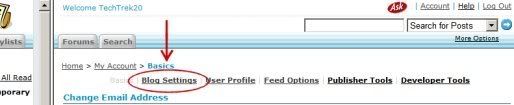
    2. Click the "Blog Settings" link (see screenshot)

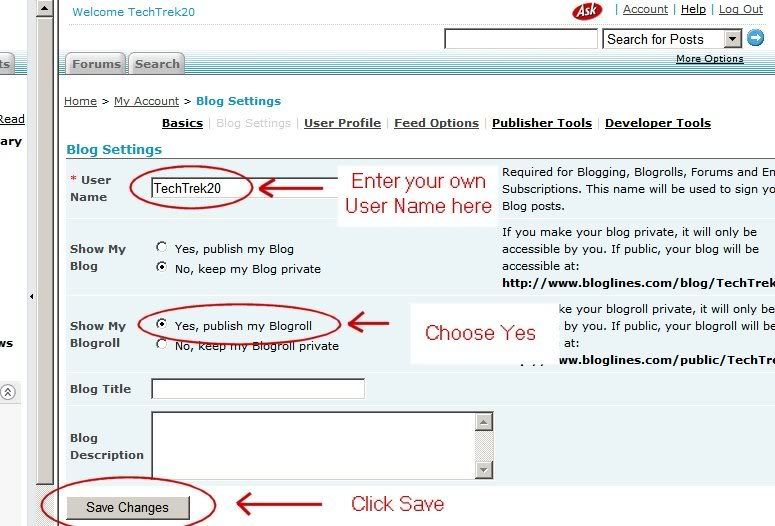
    3. Choose a User Name and type it in the space provided. Also, look for the "Show My Blogroll" option, and be sure to select the button next to "Yes, publish my blogroll." Finally, click the "Save Changes" button to complete your selections. (see screenshot)

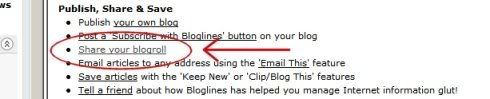
    4. Scroll down the right screen pane and find the "Publish, Share, and Save" section. Click the link for "Share your blogroll." (see screenshot)

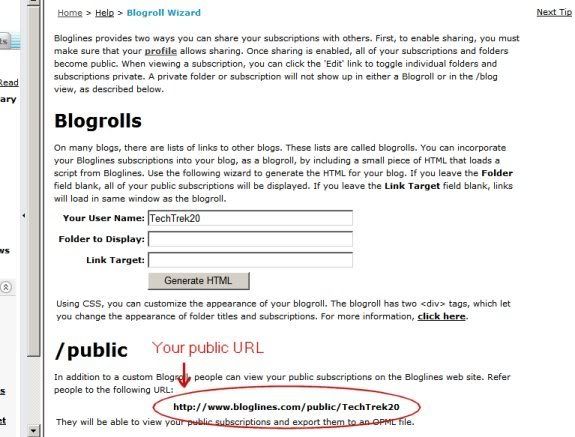
    5. Finally, scroll down the right screen pane and locate the public URL (see screenshot)

    6. Be sure to add this as part of your post to demonstrate your completion of this activity.

    In conclusion...Here is the link to Tech Trek 2.0's public Bloglines account: http://www.bloglines.com/public/techtrek20 Why would you want to have a public account? To share your blogroll with other people, of course!


    PS: Once you tackle this discovery exercise, you've tackled what we think is probably the most technical & difficult Quest of the entire 12 weeks! :-)